Check the webOS version
Find the TV model and system version in settings. They help explain why an app may be available on one LG television and absent on another.

LG / WEBOS
A straightforward starting point for checking player availability on an LG television.
Entertainment and sports














Find the model of your LG television and the webOS version it is running. Those details explain more about app choices than the brand name alone. Keep them available before you search for a player, particularly if advice you have seen elsewhere refers to a different television generation or a different region.
The TVPass LG webOS setup route starts with the television's own software. If you later connect an external streaming device, that device follows its own guide even though you keep using the LG screen. Separating those routes makes your TVPass IPTV setup easier to understand and gives support a precise description if you need help.
Find the right device guide →
Search the official app store on the LG television and inspect the publisher details and current requirements. A listing found for another device is a useful lead, but it is not a substitute for checking the model in front of you. Make the choice based on what your television actually supports.
If KLYVO PLAY is unavailable on that TV, consider a compatible version of IBOPLAYER, BOB PLAYER or IBO XPLAYER. Native KLYVO PLAY support is not assumed for every webOS model. Read any separate player terms and confirm that the selected app accepts the connection format supplied for your setup before you spend time customizing its interface.
Review player alternatives →YOUR NEXT STEPS
Find the TV model and system version in settings. They help explain why an app may be available on one LG television and absent on another.
Use your LG TV model and webOS version to check the official app store. If KLYVO PLAY is unavailable, look for a compatible version of IBOPLAYER, BOB PLAYER or IBO XPLAYER.
Connect the selected player and test playback and remote controls first. If a suitable native app is unavailable, a separate Apple TV, Android TV or Google TV device, or Fire TV Stick, offers a KLYVO PLAY route.
DEVICE GUIDE
Prepare the connection information before entering it with the remote. Read the labels in the chosen app and place each value in the appropriate field. Take extra care with punctuation, spaces and the difference between a complete playlist address and separate account fields. Repeating the same entry quickly can repeat the same small mistake.
After the account is accepted, open one item and test picture, sound and remote navigation. For this first TVPass IPTV session, keep the goal modest: a connection you understand and controls you can use comfortably. Favorites and viewing preferences can come afterward, once you know the basic route works and can be repeated.
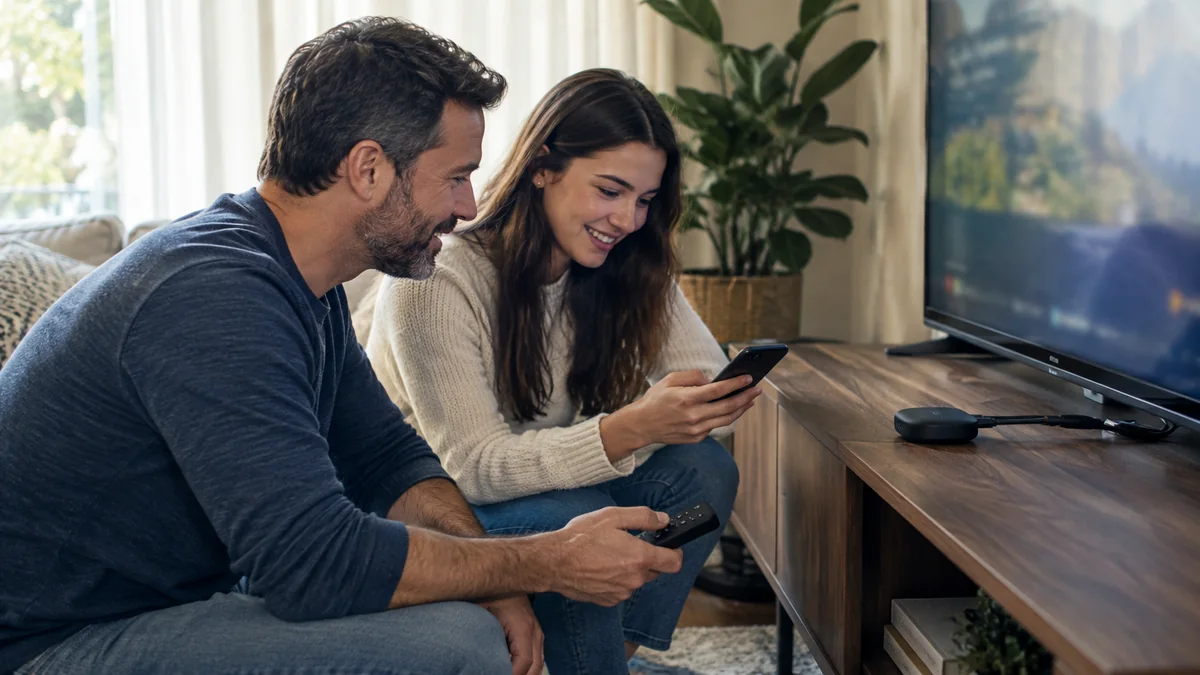
A separate Apple TV, Android TV or Google TV device, or Fire TV Stick, can provide a KLYVO PLAY route on your LG screen when an appropriate native app is unavailable. In that arrangement, the connected device runs the player and the television remains the display. Follow the guide for the device doing the playback.
Before purchasing hardware, check whether something you already own can provide that route. Consider the available connections, remote controls and how easily other people in the household can use the setup. A well-understood arrangement is usually more comfortable than adding equipment without deciding which device is responsible for the app, picture and sound.
Explore Apple TV setup →LG WEBOS / MODEL CHECK
01 / VERSION
Find the model and webOS version in settings.
02 / LISTING
Verify the app publisher and regional availability.
03 / NAVIGATION
Check remote controls before adding favorites.
Judge the image from the seat where you normally watch. Look for readable detail, a natural picture shape and comfortable brightness in the room's lighting. If a setting changes the appearance dramatically, compare it with the previous setting using the same short scene rather than switching between unrelated titles.
Listen to dialogue as well as louder effects. When a soundbar, receiver or headset is involved, confirm the intended output before changing several options. Keep a note of the last working configuration. That gives you an easy place to return if an adjustment makes a movie or series less comfortable to follow.
A useful support message says whether the player runs on webOS itself or on an external device. Include the LG model, player name and the point where the issue appears. If the app opens but playback does not begin, say that; if the app cannot be found, treat that as an availability question.
For TVPass IPTV troubleshooting, explain what you have already tested and whether the symptom appears on more than one item. Share error wording when possible, but hide passwords and private account or playlist addresses. This keeps the conversation focused on the problem and avoids having to reconstruct the entire living-room setup through several messages.
EXPLORE TVPASS