Check the device and tvOS version
Confirm the model and software version in settings. Update through the device’s normal system controls before investigating a compatibility problem.

APPLE TV
Prepare your Apple TV, verify a compatible player and connect using the details supplied for your account.
Entertainment and sports














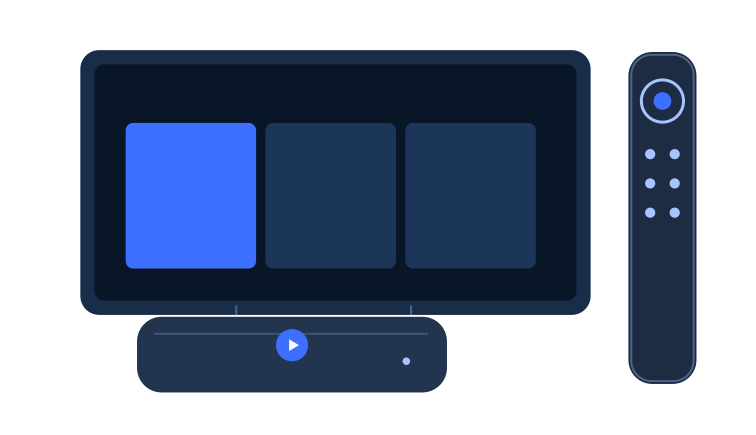
An Apple TV setup has a few distinct parts: the device running tvOS, the television showing the picture and any equipment handling sound. Identify the Apple TV model and software version before choosing a player. This keeps the setup focused on the device actually running the app, even when your television has its own smart features.
The TVPass Apple TV setup route is built around using that television device directly. It is separate from opening an app on an iPhone or iPad and trying to send the picture elsewhere. Choose the screen you intend to use for your first TVPass IPTV session, then prepare the matching player and account information.
Compare device routes →
TVPass recommends KLYVO PLAY for Apple TV. Check the official tvOS listing, publisher information and current software requirements on your device. Make sure you are following the television route, rather than treating the existence of a similarly named phone app as sufficient information about your Apple TV.
If KLYVO PLAY is unavailable for your model or software version, look for a compatible version of IBOPLAYER, BOB PLAYER or IBO XPLAYER. Review the app's requirements and any separate terms before installation. Select one player to test first so that you can learn its navigation and identify where your connection details have been saved.
Explore the recommended player →YOUR NEXT STEPS
Confirm the model and software version in settings. Update through the device’s normal system controls before investigating a compatibility problem.
We recommend KLYVO PLAY for Apple TV. Use its official tvOS listing and check the required software version. If unavailable on your device, choose a compatible version of IBOPLAYER, BOB PLAYER or IBO XPLAYER.
After a successful login, test one stream and check output through your TV or receiver. Change one setting at a time if sound or picture needs adjustment.
DEVICE GUIDE
Check the format of the information supplied for your setup before opening the input fields. Some routes use separate account details, while others use a supported playlist format. The labels in the selected app should guide where each value belongs. Avoid adding a whole address to an unrelated field simply to see whether it works.
Read back the entered values privately and check for missing characters or unwanted spaces. If the connection is rejected, keep the error wording and note whether the failure happened immediately or after a loading step. Leave account secrets out of screenshots. Clear information about the device and the failed stage is enough to start a support conversation.
After successful account entry, test a short piece of content and check where its sound is playing. A television, receiver, soundbar or headset can each be part of the room's audio setup. Confirm the intended output before changing several audio options, particularly if the same equipment works differently with another source.
Then look at the picture shape, brightness and readable detail from your normal seat. For TVPass IPTV, use one familiar test at a time and keep a note of any adjustment. If a change does not help, return to the previous setting before trying something else. That approach keeps a small problem from becoming a confusing collection of changes.
APPLE TV / TVOS ROUTE
01 / DEVICE
Confirm the hardware model and tvOS version.
02 / PLAYER
Verify a current Apple TV App Store listing.
03 / OUTPUT
Test audio through the TV, receiver or speakers you use.
A television setup should feel simple when the lights are low and the remote is in one hand. Try opening an item, returning to the list and bringing up playback controls. Check that the selected app behaves as expected with your remote, rather than assuming every player organizes its controls in the same way.
Once that feels familiar, arrange favorites or other available preferences around what you actually watch. Keep the first collection short so it helps you choose instead of becoming another long list. If different people use the screen, make sure the everyday route back to the player is easy to explain without sharing private account information.

Open the player before guests arrive or before the event you want to follow. A quick check of picture, sound and navigation gives you time to investigate a change without interrupting the evening. Confirm the title, episode or event details that matter to you instead of relying on a thumbnail alone.
If you need TVPass IPTV assistance, send the Apple TV model, tvOS version, player name and a short description of the symptom. Explain what still works and what you have already tried. A focused note helps keep the conversation practical, whether you are troubleshooting a first connection or returning to a setup that worked previously.
Get help with your setup →EXPLORE TVPASS