Identify your Fire TV device
Find the model and software version in the device settings. Make sure the device is connected and its system software is up to date.

FIRE TV / FIRE TV STICK
A device-first checklist for setting up a player on Fire TV hardware.
Entertainment and sports















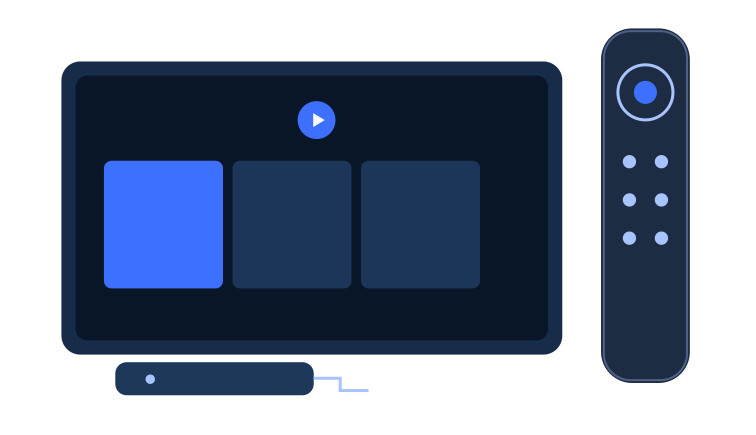
Before a first movie night, identify the Fire TV device connected to your television and note its software version. A stick behind the screen can be easy to forget, especially when several remotes share the coffee table. Knowing which device actually runs the player helps you follow the correct route and avoid changing unrelated television settings.
This TVPass Fire TV setup guide starts with that practical distinction. The television supplies the screen, while the connected Fire TV device runs its own software and apps. Prepare the remote, make sure the device is connected to your home network and keep the account information needed for your TVPass IPTV setup within reach.
Review the setup checklist →DEVICE GUIDE
TVPass recommends KLYVO PLAY for Fire TV Stick. Follow the official publisher route appropriate to your model and software version, and check the app identity before installing. Avoid treating an unfamiliar download page as authoritative just because its title contains the player name. The source and device requirements should be clear before you enter account information.
If KLYVO PLAY is unavailable on your hardware, look for a compatible version of IBOPLAYER, BOB PLAYER or IBO XPLAYER. Check that the alternative is intended to work with your device and remote. Read any separate player terms, then choose one route to test so you can keep track of what is installed and where your details were entered.
YOUR NEXT STEPS
Find the model and software version in the device settings. Make sure the device is connected and its system software is up to date.
We recommend KLYVO PLAY for Fire TV Stick. Use the official publisher route for your device. If it is unavailable, choose a compatible version of IBOPLAYER, BOB PLAYER or IBO XPLAYER.
Use the connection details provided for your account and keep them private. Test a short stream, then check sound, display and remote navigation before settling in.
Typing with a television remote takes patience. Before starting, separate the information you have been given into its individual fields, such as the server address, username and password when that format applies. Match those values to the labels in the player instead of guessing which field should contain a complete playlist link.
Watch for a stray space, an omitted character or an address copied incompletely. If the app rejects the connection, compare one field at a time with the original information. Keep passwords and private addresses out of screenshots. A careful first entry is more useful than repeatedly reinstalling the app without checking the same underlying details.
Understand login and playlist fields →A setup that works while you are standing next to the television should also feel comfortable from the sofa. Try selecting an item, going back, moving through a list and opening playback controls. Check that the remote responds predictably and that the selected player does not depend on a touch gesture you cannot reproduce.
During this first TVPass IPTV test, use a short viewing session to inspect the picture and listen to the sound. If a receiver or soundbar is connected, confirm that the expected device is playing the audio. Keep the first test simple; favorites, sorting preferences and other personalization can wait until ordinary navigation and playback are working.
FIRE TV / HARDWARE ROUTE
01 / IDENTIFY
Find the model and software version in settings.
02 / VERIFY
Use an official player source for your device and region.
03 / TRY IT
Test selection, back, playback and sound.
If playback pauses, note whether the player interface still responds and whether other content behaves the same way. Check the connection used by the Fire TV device itself, rather than assuming the television and the stick are using the same network. A brief observation is more useful than changing every setting at once.
Pause large downloads elsewhere in the household for a comparison test, then record what changed. Avoid moving directly from a single interruption to a conclusion about every stream or the whole account. The buffering guide helps you organize the symptom, while a clear note about the device, player and time of the issue gives support a better starting point.

Once your first session works, remember which input opens the Fire TV device and which player you selected. This matters when someone else in the household switches to a game console or another source. A small note near the remote can make the next evening easier without adding another complicated routine.
Keep a private record of the app and device version if you later need TVPass IPTV help. Before a game or movie you especially want to watch, open the player early enough to check that the setup still behaves as expected. Familiarity with your own controls is often what turns a new device into a comfortable part of the room.
Plan a relaxed movie night →EXPLORE TVPASS