01 / OFFICIAL APP
Check publisher details and device requirements.

ANDROID PHONE / TABLET
Prepare an Android mobile device and verify the player before connecting an account.
Entertainment and sports















Begin with the Android device you plan to watch on, rather than assuming that every phone and tablet will use exactly the same route. Note the model and Android version, then check the app's current requirements. A tablet used at home and a phone used between daily activities may also need different viewing preferences.
The TVPass Android setup guide focuses on a comfortable mobile experience: touch controls, a readable screen and a connection you understand. Choose a quiet moment for your first TVPass IPTV test so you can inspect account entry and playback without also dealing with an unfamiliar network or a device that is about to run out of charge.
Review the first-time checklist →DEVICE GUIDE
TVPass recommends KLYVO PLAY for Android phones and tablets. Use the official publisher route and inspect the app identity and device requirements before installation. Similar names or icons can make an app look familiar, so check the listing details instead of treating the first search result as confirmation that it is the intended player.
If KLYVO PLAY is unavailable on your device, review compatible versions of IBOPLAYER, BOB PLAYER or IBO XPLAYER. Check the supported connection format and any separate app terms before choosing. Keep one player as your first test route, which makes it easier to understand the controls and remember where your account information has been entered.
ANDROID / MOBILE ROUTE
01 / OFFICIAL APP
Check publisher details and device requirements.
02 / CONNECTION
Enter the supplied format and keep credentials private.
03 / DATA USE
Review mobile-data limits before watching away from Wi-Fi.
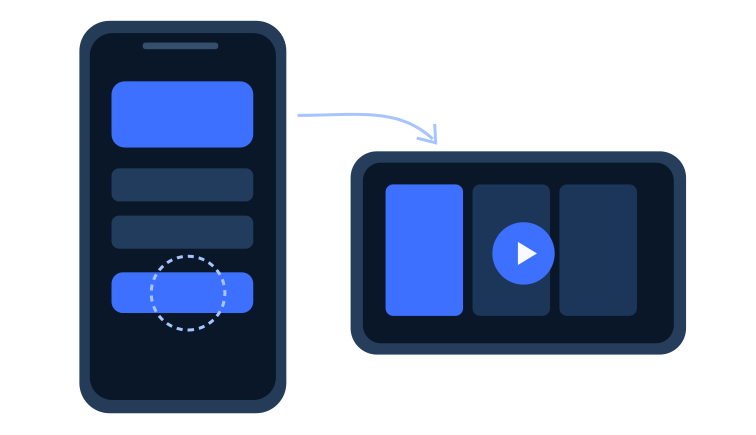
A phone keyboard makes account entry convenient, but it can also introduce an unwanted space or alter punctuation. Match each supplied value to the field requested by the player, then read it back privately. If the route uses a playlist address, use the designated field rather than dividing it between unrelated account fields.
Do not paste private connection details into a public message or leave them visible in a screenshot. If you need assistance, describe the device, app and error stage first. For TVPass IPTV, it is useful to know whether installation succeeded, whether the account was accepted and whether the player reached the content list before the problem began.
Check login and playlist input →Use a stable, familiar network for the first playback test so that account entry and connection issues are easier to separate. Open one item and check picture, sound and the touch controls. Try the orientation you normally prefer and make sure you can return from full-screen playback without losing your place in the app.
If you expect to use mobile data later, review your data plan and any quality controls offered by the player. Video can consume substantial data, and usage depends on the stream and settings. Decide how you want to watch away from Wi-Fi before a long session, rather than discovering the impact after the session has finished.
YOUR NEXT STEPS
We recommend KLYVO PLAY for Android phones and tablets. Use its official publisher route and check device requirements. If unavailable, choose a compatible version of IBOPLAYER, BOB PLAYER or IBO XPLAYER.
Complete the first test on a stable connection so setup errors are easier to distinguish from network problems. Keep login and playlist details private.
Video can use significant mobile data. Check your data plan and the app’s quality controls before using it away from Wi-Fi.

A smaller screen can be ideal for a single episode or a short viewing break. Keep a compact next-up list and note the season and episode you intend to continue. This makes the app useful when you have limited time, instead of spending the whole break deciding where you left off.
Check headphones or speaker output before you begin, especially if other audio devices have recently been connected. Keep the screen comfortable to read and pause before changing tasks. Features such as casting, external displays or background behavior should be checked separately for the app and device; a successful phone setup does not automatically establish those capabilities.
Plan your series watchlist →If playback behaves differently after a device or app update, record the versions and the symptom before changing several settings. Say whether the problem happens on Wi-Fi, mobile data or both, and whether it affects one item or more than one. These details help distinguish a recurring issue from a single interrupted session.
When contacting TVPass IPTV support, keep the message short but specific: device model, player, connection type, error wording and what you have tried. Hide credentials in any image you share. You do not need to diagnose the cause yourself; you only need to describe what you can observe clearly enough for the next check to be useful.
EXPLORE TVPASS