01 / SYSTEM
Confirm Android TV or Google TV on the actual device.

ANDROID TV / GOOGLE TV
Check the device, find a compatible player and make your first playback test.
Entertainment and sports












Start by identifying the operating system on the screen you are using. Android TV and Google TV are television routes, while a device described broadly as an Android box may use a different interface. That difference affects how you install apps and whether the player is comfortable to operate with a remote.
The TVPass Android TV setup guide is for a television-style experience, including the Google TV route described in your device information. Note the manufacturer, model and software version before choosing an app. Those details are more useful for your TVPass IPTV setup than relying on the product name printed in large letters on the packaging.
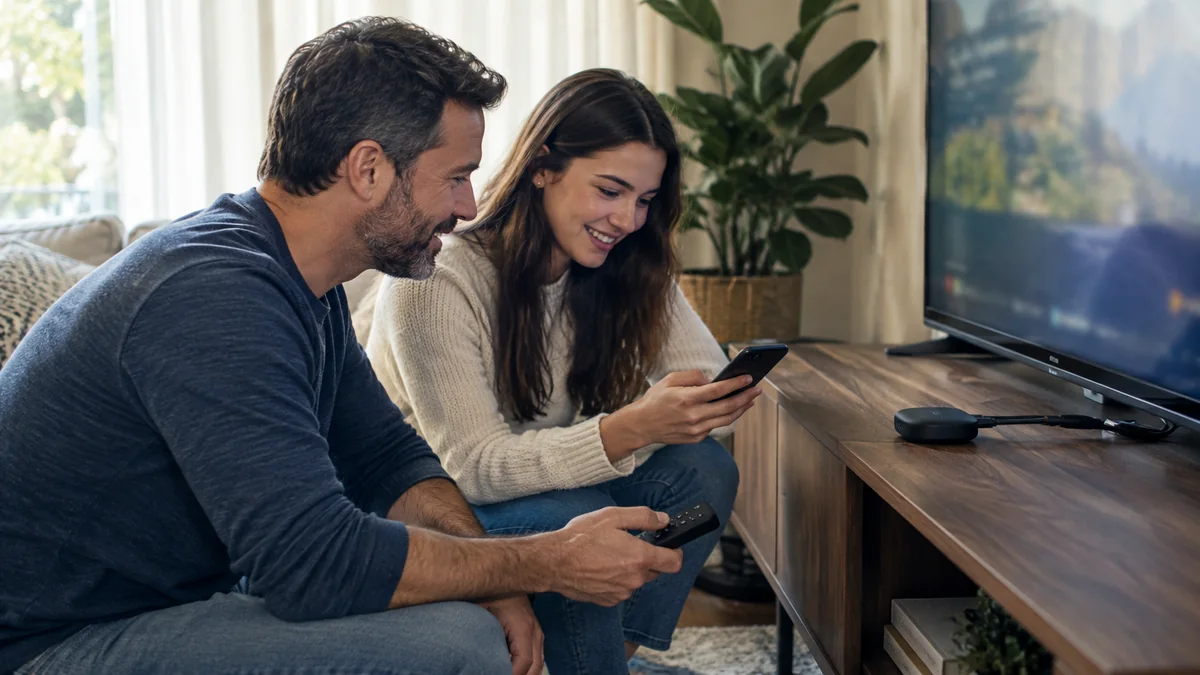
TVPass recommends KLYVO PLAY on Android TV and Google TV. Find the official version for your device and check the publisher details and current requirements before connecting an account. An app that looks right on a phone may arrange its controls differently from a version designed to be viewed across a room.
If the recommended player is unavailable, review compatible versions of IBOPLAYER, BOB PLAYER or IBO XPLAYER. Check remote navigation and the supported connection format as part of that choice. Keep any separate app terms in view, and install through the appropriate official route rather than assuming an unrelated file with a similar name is the same product.
Read the KLYVO PLAY route →ANDROID TV / GOOGLE TV
01 / SYSTEM
Confirm Android TV or Google TV on the actual device.
02 / STORE
Check the TV-specific listing and publisher.
03 / CONTROLS
Try search, select, back and playback with the remote.
DEVICE GUIDE
Before typing, identify whether your setup uses separate account fields or another supported playlist format. Read the player's labels and match each piece of information to its intended place. If you are using a remote keyboard, take a moment to inspect punctuation and spaces; a small input error can make otherwise correct information unusable.
Keep the original details available privately so you can compare them without relying on memory. If a connection attempt fails, record the message and the stage at which it appears. Do not share an unredacted password, server credential or playlist address when asking for assistance. Support can begin with the device, app and visible symptom.
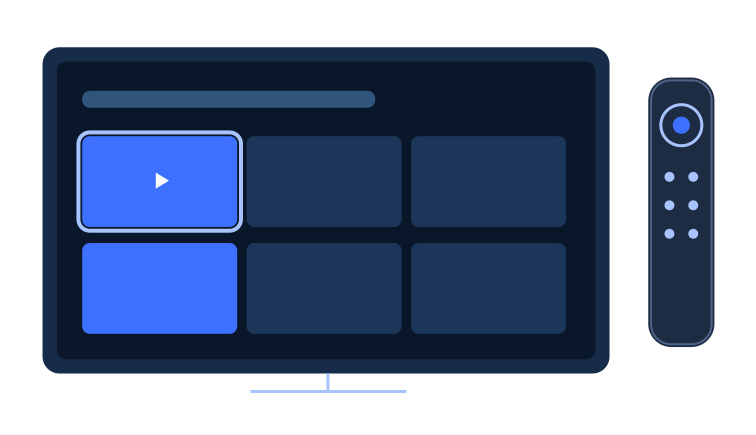
Try the controls you will use every evening: moving through choices, opening a title, returning to the previous screen and adjusting playback. Make sure the selection remains visible as you move. A comfortable experience should not require you to guess which item is active or reach for an extra input device for ordinary actions.
Test from your normal viewing position rather than only beside the television. This is also a good moment to check text size and contrast against the room's lighting. With TVPass IPTV connected, keep customization modest until you know where the important controls are and can return to the content without getting lost in menus.
Organize your viewing routine →YOUR NEXT STEPS
A device running Android TV or Google TV is different from a phone-style Android box. Check the actual system and model before following a guide.
We recommend KLYVO PLAY on Android TV and Google TV. Find the official TV version for your device. If it is unavailable, choose a compatible version of IBOPLAYER, BOB PLAYER or IBO XPLAYER.
After connecting the account, try selection, back, search and playback controls. If a player depends on touch input, it may not be suitable for your television setup.
Your viewing experience involves the content, the player, the network connection and the display. When something looks wrong, identify which part you are adjusting. Changing both player and television settings together makes it difficult to tell what helped, and a display mode that looks dramatic at first may not suit every kind of program.
Use a familiar scene or a short playback test to check brightness, picture shape and dialogue. If sound comes through a separate system, confirm that the output you expect is selected. Preserve a record of the working settings before making further changes, especially when the same screen is also used for games or other apps.
Review picture and sound guidance →DEVICE GUIDE
A useful support message describes the device model, Android TV or Google TV software version, player name and the point where the problem begins. Explain whether the interface opens, whether account entry completes and whether the issue affects picture, sound or both. Include the wording of an error message when there is one.
For a TVPass IPTV playback issue, add whether you are using Wi-Fi or a wired connection and whether the same symptom appears on another item. Keep the description focused and leave private account information out of screenshots. This makes the conversation easier to follow and reduces the need to repeat checks you have already completed.
EXPLORE TVPASS